Tuesday, 12 August 2014

Display a user's name in workflow email

I needed to create a List in SharePoint 2007 that would allow my colleagues in IT to track installations on staff PCs and laptops. I then wanted to be able to trigger an email to the staff member when the installation was completed, giving instructions on how and when to reboot their computers.

Obviously, a Workflow was the way to go, but I kept bumping my head against the problem of extracting the staff member's name from the "Name (with presence)" field in the SharePoint list. The Workflow was writing "domain\userID" instead of "Firstname Lastname". So I had a bit of a Google and came up with ... not very much. Others were obviously having the same problem - it seems to be a known issue with SP2007.

How to resolve full names from a Person or Group column

Workflow generated email - Username lookup - TechNet

[Annoyingly, the messageboard moderators had in both cases marked these questions as answered, even though the OPs had reported that the answer didn't work for them.]

So how do you get the text of a person's name out of a "Name" list column? Well, you can't really ... at least, not out of the box.

I certainly didn't want to start installing Codeplex solutions onto our server (I work in a Corporate environment and making changes to the server involves much tsk-ing and shaking of heads). So I had to come up with another way of doing it.

I reasoned that the IT project manager running the project would have to type in the staff member's name anyway, so why not just type the name into a plain text field? No difference in effort, right?

So I set up the list with these columns (among others):

Employee - plain text field
UserName - Person or Group, Show field value = Name (with presence)
UserID - Person or Group, Show field value = User Name
Department - Person or Group, Show field value = Department

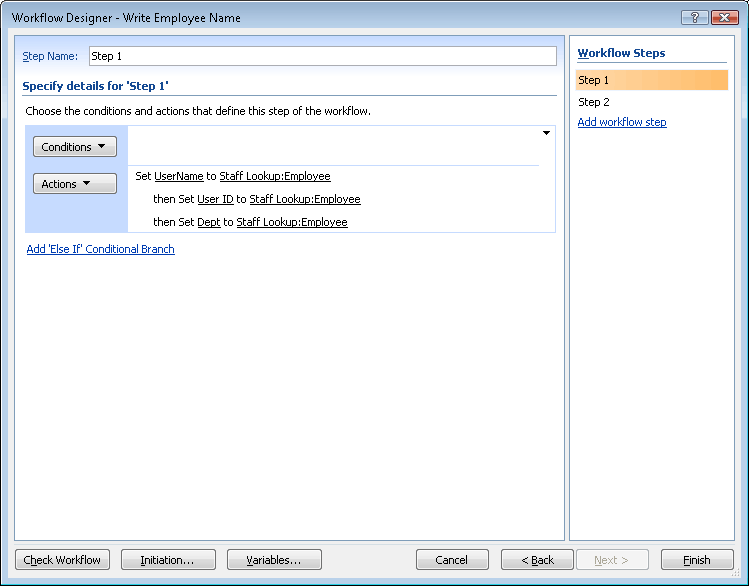
Then I set up a workflow to copy the values for UserName, User ID and Department from the plain text Employee field, when a new item is created ... that's Step 1.


This copies the user's name from the plain text column into the Person or Group columns ... like this:


Step 2 is where I create an email template to alert the employee that their installation is complete. (For test purposes, I'm sending this email to myself using the "Created by" value, but you can use the "User Name" value to send the email to the employee named in the List Item.) 

Be careful to insert a pause before the email is triggered. If you don't, the email will contain the plain text value as entered in the Employee field for each of the other columns. That is because the system takes a few seconds to resolve the plain text into a "Name (with presence)".


Setting up the email is quite easy. I've reproduced a simplified version here, so you can see which columns I called in the email, then the finished result below:


You can see from the email reproduced here how the columns output into a Workflow email. The one to use if you want the include the User's name, say, in a salutation, is the first, plain text one.


Hope this helps someone.


Thursday, 9 January 2014

SharePoint 2007: WorkFlow email removes space from Lookup URL


Here's a thing ... A colleague wanted SharePoint to handle requests for printed stationery (letterheads and so forth), based on Templates stored as PDF files in a SharePoint Document Directory. So, the best way of doing this was to create a new separate Custom List to store the requests and when a new request was logged, use a SharePoint Designer WorkFlow to fire off an email to our facilities people so they could action the printed stationery request.

Sounds simple, right? Well, it was ... up to a point.

So I created the list, and added these columns:

SelectTemplate - A Lookup. This points at the Doc Directory where the PDF tempates are stored. As I couldn't retrieve the file name (SharePoint doesn't offer that option), I had to target the Title field. I made this work this by adding a separate WorkFlow that copies the file name into the Title field whenever you add a new document to the Directory. This field shows as a drop-down picklist in the NewForm.aspx page.

Quantity - obviously, we need to know how many copies of the letterhead they want.

UserText - this is to convert the User ID into a proper name - see the very first post in this blog for how to do that.

This meant that users could create a new item in the Order Stationery list, fill in the NewForm and let the WorkFlow fire off the email. For the email I stole the code SharePoint generates for a List Alert and customised it to hold the fields I wanted. The content of the email would include the Title (I gave the Title field a default value of "Stationery Order"), The PDF template name rendered as a link to the stored PDF, the Quantity required, the name of the Requestor and the date the request was made.

All pretty straightforward.

But when I ran a test, I found something really odd was happening. The link to the PDF didn't work. Here's how I sent up the link in the WorkFlow email:

<a href="http://myserverpath/[%LH Orders:SelectTemplate%].pdf">[%LH Orders:SelectTemplate%]</a>

No reason why that shouldn't work, right? But when I did View Source on the email in my Inbox I could see, weirdly, SharePoint had stripped out the first word space it encountered in the URL but translated the remainder into "%20". Like this:

<a href="http://myserverpath/Birmingham-%20Letterhead%20Jan%2014.pdf">Birmingham - Letterhead Jan 14</a>

Why it was doing that I had no idea. A search on Google showed this problem was frustrating other people as well. So, not just me then.

Not one instance of this problem, posted in the various forums (fora?), had an adequate answer beyond, "Don't put word spaces in file names". My problem with that advice is that these systems are used by human beings and people find file names full of underscores and hyphens hard to read on-screen. Even more confusing when they're trying to find a complex file name in a picklist of many complex file names.

However, because I'd been able, on an earlier occasion, to use JavaScript in a list's NewForm.aspx page to transform the UserID value into a fully-rendered user name I figured there might be a way to replace the word spaces throughout the filename with the "%20" character. So the first thing to do was to create a new column to hold the cleaned up text of the file name. I called it "templateURL".

templateURL - this is the field where we'll store the "escaped" file name.

Then I needed to retrieve the ID of the field as rendered in the NewForm.aspx page. So I opened the NewForm page and did View Source, then grabbed the IDs of both the SelectTemplate field and the templateURL field.

Now my JavaScript skills are pretty poor, so I managed to get a colleague to help me with this. The script he came up with was this:

<script>
function getSelectedText( obj ) {
   return obj.options[obj.selectedIndex].text;
}
    function encodeTemplate() {
var templateURL = document.getElementById("ctl00_m_g_23fc3b40_9a6b_4126_bcf4_a3bfc2fff76d_ctl00_ctl04_ctl05_ctl00_ctl00_ctl04_ctl00_ctl00_TextField");
var templateLookup = document.getElementById("ctl00_m_g_23fc3b40_9a6b_4126_bcf4_a3bfc2fff76d_ctl00_ctl04_ctl01_ctl00_ctl00_ctl04_ctl00_Lookup");
templateURL.value = encodeURI("http://oneintranet.qbe.eo/departments/cres_procedures/QBE Claims/" + getSelectedText(templateLookup) + ".pdf");
}

var templateLookup = document.getElementById("ctl00_m_g_23fc3b40_9a6b_4126_bcf4_a3bfc2fff76d_ctl00_ctl04_ctl01_ctl00_ctl00_ctl04_ctl00_Lookup");
templateLookup.attachEvent("onchange", function(){encodeTemplate()});
</script>

I pasted this script into the NewForm.aspx page after this line:

<asp:Content ContentPlaceHolderId="PlaceHolderBodyAreaClass" runat="server">

The JavaScript grabs the value rendered by the SelectTemplate field. It then replaces the word spaces with "%20" (that's the encodeURI function), then copies the result into the plain text field I set up, templateURL. Finally, it builds a URL for the PDF template file by putting in the server path at the front and tagging ".pdf" on the end. Note that the actual name of the document directory that holds the templates also has a word space in it. The encodeURI takes care of that, too.

All that remained was to change the link in the WorkFlow email to:

<a href="[%LH Orders:templateURL%]">[%LH Orders:SelectTemplate%]</a>

And there you go. All done and dusted. You have a link to a stored document that works and gets round SharePoint's strange habit of removing just the first space it encounters in a URL inserted from a Lookup in a WorkFlow email.

One enhancement you might make would be to hide the text fields in the NewForm.aspx page, so that your users can't mess with the text automatically copied there during the placing of an order. Another of my earlier blogs describes Hiding Fields in NewForm.aspx.

Hope this helps someone.
Friday, 2 August 2013

SharePoint 2007 - Cannot access "Page Settings" area in Publishing site

Here's an odd thing. I wanted to change the Page template of a SharePoint page that was displaying in an old, outdated template. But when I went Edit Page, then Page > Page Settings ... 


... I wasn't seeing the familiar Page Settings page. I was seeing this:


No sign of my picklist of Page Templates at all. I knew I had encountered this problem before, but couldn't remember what the solution was, so I got on to trusty Google, figuring someone is bound to have the answer to this vexing issue. But no ... nothing doing.

I tried going to the Pages Directory and seeing if Editing Properties of the page would help, but that got me nowhere.

Then, running out of options, I fired up SharePoint Designer and navigated to the sub-site. And there it was! 


The dad-blasted Page Layout was detached, obviously from some earlier Designer fiddling and I'd forgotten to reattach. Simply reattaching the Page Layout fixed the problem and I was able to access the Page Layout picklist in the Page Settings area.


It might seem screamingly obvious but then, you can't always remember everything, and incredibly, no one has posted an explanation for this problem that crops up in the first ten screens of a Google search. 

So hopefully, this will save someone thrashing around, trying to figure out why they can't change the Template for a SharePoint Publishing page.

Monday, 8 July 2013

Place a Picture Library SlideShow on a SharePoint 2007 page

I wanted to embed a Picture Library as a SlideShow in a SharePoint 2007 page, but when I checked the Microsoft web site, their coverage of the SharePoint 2007 Picture Library function didn't have the information I needed. So, I had to figure it out for myself.

So here's what I did to embed a Picture Library SlideShow on the page ...

  1. First, I created a SharePoint Picture Library in the normal way and loaded up the images.
  2. Next, in the newly-created Picture Library, I selected View Slide Show from the Actions menu.


  3. This brings up the Slide Show in a new browser window. I right-clicked on the Slide Show and selected Properties.


  4. I highlighted the URL of the Slide Show and copied to the clipboard with the ctrl-c function.


  5. Then I placed a Page Viewer Web Part on the selected SharePoint page and added the URL from the clipboard. You may have to adjust the height of the Page Viewer Web Part to accommodate the size of image you're using.
That's it ...

Tuesday, 21 May 2013

Setting default values for Content Types on creating a new page


While trying to set up a facility in SharePoint to email around summaries of the week's top news stories, I ran into a strange problem.

If you've read my previous post, you'll recall that I had set up a sub-site in SharePoint to hold the news articles - each article was on a new page and the pages incorporated metadata stored in Content Types created for that purpose.

I'd built the pages that way so that the non-technical News publishers would be able to set vital meta-data for each story without having to go the 

Site Actions > View all Site Content > Pages 

route to get to the Edit Properties function.

All that went fairly smoothly - apart from a small glitch around retrieving the current Page URL (see the previous Blog posting) - and we proudly launched our new News facility.

The next glitch came when one of the publishers was compiling the weekly round up of top News stories. I'd made a page containing a DVWP which looked at the Pages folder that contained all the News stories and displayed just those where a value for "weekly roundup email position" had been set. This is a Content Type that contains a choice of values "1st story, 2nd story, etc". The publisher creates a new story, then selects a value for "weekly roundup position" from a pick list. If the story isn't required in the weekly round up then they leave the value as "Select a position for email". The Content Type had the same value set as the default value.

The issue was, when the publisher created a new story, the value for "weekly roundup position" was blank by default. Where was the default value?


Above left is what the metadata setting looked like when a new page was created, but we needed it to look like the above right image, with a default value displayed in the Roundup picklist.

Everything looked like it was set up correctly but it wasn't working ... so had a trawl around on Google and was unable to find anyone else with the same problem. Then I chanced on a site where someone was talking about not seeing default values on Content types. After following a series of links and putting the information together, it became apparent to me what was causing the problem. Turns out you have to make the group of Content Types the Default Content Type Group for the List you're looking at.

So here's what I did ...

I had set up my new Content Types in the Article Page group. So I drilled down to the Content Type and made sure the default value was set to what I wanted.


Next I went back to the List - in this case, the Pages Directory that held the News articles - and from the Settings menu selected Document Library Settings.

Then I found the Content Types section - note that the Page Content Type is set as the default - and clicked on the link Change new button order and default content type.


Now it's not screamingly obvious but what you have to do is bring the Content Type Group that holds the Content Types you want to display the Default Values for up to the top of the list by setting its value to "1", then clicking OK.


That's it. The Content Types section should now look like this, with Articles at the top and ticked as the Default Content Type.


Now when you create a new page, the default values you set in the Content types will be added to the metadata for that page, unless (or until) you choose a different Content Type value.

Hope this helps someone ...

Friday, 12 April 2013

Adding page-specific icons to a SharePoint page


I was building a news function for SharePoint 2007 that is a bit more sophisticated than the OOTB Announcements list. I figured I could make each news story a new page, then use Content Types to hold the metadata for each page that identify the news stories by type (ie, Business, Community, HR), the position they'd appear on on the Home page and whether they were a critical story that needed to be held in a DVWP listing so it wouldn't drop off people's radar.

The reason I wanted to use Content Types (as opposed to simply adding columns to the Pages directory) was I wanted the end-users to be able to set the metadata values on the same page that they would add the headline, summary, body text and picture on.
This arrangement allows the end-users to set
metadata for the news detail page that determines
how the news articles will appear in other web parts
around the site

All this seemed pretty easy ... and I don't want to cover the process here in detail, as you can find how to do this on any number of other sites.


But a problem arose when I had a further requirement to set icons for each news story depending on which company values related to the subject matter of the story.

So I set up a Content Type for the icons ("StrategicLevers") and made it a tickbox choice so the end users could tick a box to make that icon appear on the page.

Next I added a Data View Web Part to the page template that looked at the Pages directory where the news detail pages would be stored, and called the values from the Content Type I'd already set up to hold the values for the icon images.

Then I had to find a way of identifying the current page in the DVWP that would display the correct icons. This at first appeared to be a pretty easy task. I would just use the in-built SharePoint parameter for the page URL called, with customary Microsoft creativity, "PageURL".

So I set a binding up for the PageURL parameter and then called the parameter further down the page, like this:

<ParameterBinding Name="PageURL" Location="Postback;Connection;CAMLVariable/>

in the ParameterBindings section, then added the Parameter further down the page, like this: 

<xsl:param name="PageUrl" />

at the top of the StyleSheet section.

After that, you should be able to use the PageURL Parameter return a value for the current page within the page ... 

In my case I was going to use the parameter to filter out all the values that weren't the current page. So I set up a a test using Choose/When, like this:

<xsl:choose>
<xsl:when test="@FileRef = $PageURL">
</xsl:when>
</xsl:choose>

What this does is that the DVWP iterates through all the pages in the Pages directory, comparing each page URL with the current page's URL and only displaying when there's a positive match. So far, so good ... except this is the point where I should have checked what value is being returned by this filtering process, perhaps by inserting:

<xsl:value-of select="@StrategicLevers">

to see what value came back. But I didn't. I pressed on and started adding the Choose/When statements that would display the icons according the values set in the StrategicLevers Content Type.

The way I wanted the function to work was that the icon would appear greyed out if the tickbox was unticked and in full effect if the box was ticked. So I did this:

<xsl:choose>
<xsl:when test="contains(@StrategicLevers, 'Solutions')">
<img src="/newsImgs/4_Creative_on.png"/>
</xsl:when>
<xsl:otherwise>
<img src="/newsImgs/4_Creative_off.png"/>
</xsl:otherwise>
</xsl:choose>

for each icon. In this case, "Solutions" is the value of that icon's tickbox. You'd have to change that value for each icon.

Next step, do a test. So I saved the template then opened a news detail page in my browser and ticked a couple of the icon tickboxes, but all the icons remained stubbornly greyed-out.

What followed was two days of frustrating trouble-shooting until I stumbled across a solution.

Even though I could see a value for the PageURL parameter in the Design view of Sharepoint Designer (SPD), the value wasn't displaying in the browser. I couldn't think of any reason why that would be so, but in the end accepted that it was so and started looking for another way to call the value for the current page so I could use it as a filter value.

By blind luck, I found a mention on Marc Anderson's blog about a Server variable that did the same thing.

So I got rid of the PageURL parameter binding and replaced it with this one:

<ParameterBinding Name="PageAddr" Location="ServerVariable(URL)" DefaultValue=""/>

...replaced the parameter further down the page with the new one, like this:

<xsl:param name="PageAddr" />

... and amended the parameter name in the first Choose/When routine:

<xsl:choose>
<xsl:when test="@FileRef = $PageAddr">
</xsl:when>
</xsl:choose>

Success! This worked fine in the browser, but perversely, didn't work at all in SPD Design view ... I still have no idea why Microsoft thought this was a good idea.

Friday, 7 September 2012

Modifying the size of an image stored in a Content Type

Here's a puzzle. We wanted to call a SharePoint Content Type that holds an image, but to use code to force the image to present at a different size. But the XSL call in the SharePoint page looks like this:

<PublishingWebControls:DateTimeField FieldName="PublishingPageImage" runat="server" />

... so there's not a lot of scope to add in height and width attributes. Using the SharePoint web browser image size controls wasn't an option because we needed the same Content Type image to appear at full size elsewhere.

After a bit of searching on Google, we realised that this wasn't going to be solved for us. So we looked back over our code snippets and found a way of splitting up the code that SharePoint renders into its component parts. Here's how we did it.

1. Create and populate a variable with the image URL from a Publishing Image (content type). Like this:

<xsl:variable name="picURL" select="substring-before(substring-after(@PublishingPageImage, 'src=&quot;'), '&quot;')" />

2. Now call the variable and drop it into an image call with different size attributes, like this:

 <img height="75" width="100">
   <xsl:attribute name="src">
     <xsl:value-of select="$picURL" />
   </xsl:attribute></img>


SPDesigner won't like the closing img tag, but just ignore the yellow highlight!