Friday, 6 March 2026

Link Content Types in Power Apps

AS ANY INTRANET MANAGER WILL TELL YOU, THE LAST THING YOU NEED is for your Site Editors to take copies of documents from elsewhere in the Intranet to add to their own document libraries. This will only result in multiple copies of the same document throughout the Site Collection, throwing up links to outdated versions of the same document in the Search results and causing confusion for the site visitors.

The problem was very real in SharePoint Classic, but with SharePoint Modern, Microsoft introduced the Link Content Type for Document Libraries, which meant that you could include Links to remote documents in your Library and even apply metadata to help organise those Links in the same way you would with actual documents.

Click image to enlarge.

So, if we can get site editors to change their habits and use Link Content Types instead of multiple copies of files, everything will be just great? Well, kind of ...

I ran into a bit of a challenge when creating a Power Apps searchable Gallery for a document library that uses a lot of Link Content Types. While the documents would open readily from the Gallery, the Link Content Types just downloaded shortcut files to the PC's local Downloads folder. Not really the behaviour I was looking for.

So I went to Google to try to find how a Power Apps Gallery could launch a document from a Library Link Content Type. I think that search term captured all the key words. I found just one post in the Microsoft Power Apps Community site that tried to tackle the problem.

In that post, the first solution offered was to add "?csf=1&web=1" to the end of the Launch Expression, which sort of, kind of works. But it's a pretty ugly result.

Click image to enlarge.

Your visitors would need to know to click on the tiny and obscure Open button at the top right of the screen. That wasn't going to work for me. 

Then, right at the foot of that same post, there were some instructions for using an embedded Flow to extract the URL from a Library Link file. The explanation was lacking in detail, so I set about decyphering it to figure out how to make it work for me.

SET UP THE FLOW

Let's start with creating the in-App Flow. Click the ellipsis at the foot of the Power Apps left hand navigation and select Power Automate from the fly-out menu.

Click image to enlarge.

Click Create new flow and select the Create from blank button. Name your Flow now (I called mine getURL). This is important because first time I tried this I didn't and adding the name after working on the Flow proved trickier than it needed to be.

Click image to enlarge.

When the Flow opens, the first Action - Power Apps (V2) - is already there. Expand the panel and add the value for the Document Library we're going to call later. I've labelled it "FilePath", here. Not the best label - it probably should have been "DocLibrary" - but it really doesn't matter. The key info is the pathway to the Library, which I've put in as:

/DocsMNTraining/

Click image to enlarge.

The next Action we need is the Get file content using path. We add the site address and then the output from the previous action. These will then be combined to render the full pathway to the Library Link in the Document Library.

Click image to enlarge.

Finally, we need to gather together everything from the first two actions and write the output into a variable for the Power Apps Gallery to process. Add the Action Respond to a Power App or flow. I called the variable "urlValue" and set its value to:

last(split(base64ToString(outputs('Get_file_content_using_path')?['body']['$content']),'URL='))

You can do this by adding the above script to an expression.

Because the Get file content using path action extracts the Link file's content as Base64, we need to convert it to a string before the Power Apps Launch function can recognise it (no, I didn't know that either). Bear with me, all will become clear.

Click image to enlarge.

I mentioned at the start of this piece that trying to launch a Library Link Content Type from a Power Apps Gallery caused a shortcut to be copied to my Downloads folder. So I opened one of them and took a peek inside. This is what I saw:

Click image to enlarge.

You can see that the actual URL is preceded by "URL=", so our formula above is saying, "grab everything after "URL=" and convert it from Base64 to a text string.

So far, so good.

... AND BACK TO THE POWER APP

When setting up a SharePoint Document Library in a Power Apps Gallery in the past, I've just used an HtmlText box and put in a formula something like this:

Concatenate("<a href='https://xxxxx.sharepoint.com/sites/SiteName/",ThisItem.'Full Path',"' style='Text-Decoration:None;'><b>",ThisItem.Name,"</b></a>")

I use ThisItem.'Full Path' in preference to ThisItem.'File With Extension' because it makes for a cleaner link and the icon (which we'll get to later) is enough to tell visitors what kind of file to expect. And that works fine for "real" files. But with URL links, we have to trigger the Flow to process the link information, so a different approach is needed. And that's where the Launch function comes in.

The formula we need is something that will kickstart the Flow, extract the Link URL and then action it from Power Apps, so something like this:

Launch(getURL.Run(ThisItem.'Link to item').urlvalue)

What that does is fire up the Flow, which compiles the Link's URL from the value ThisItem.'Link to item', converts it back into a string and writes the value to the variable urlvalue. The formula then Launches the value in the urlvalue variable.

That's all fine and dandy for processing URL links stored in a SharePoint Library. But what about the actual files - PDFs .docx, etc? Well, we just need to combine the formula into an If statement and we should be good to go. Like this:

If(
    Lower(Right(ThisItem.'File name with extension', 3)) = "url",

    /* Item is a SharePoint .url file */
    Launch(
        getURL.Run(
            ThisItem.'Link to item'
        ).urlvalue
    ),
    /* Item is a normal file */
    Launch(
        ThisItem.'Link to item'
    )
)

What we're saying here is ... if the last three characters on the right of the filename are "url", run the Flow. If not, just use the regular ThisItem.'Link to item' value. The "lower" is just a precaution in case the Link's suffix is ".URL" instead of ".url".

Then, we need to deploy the solution into the Gallery. My first thought was to just put in a Text box displaying the FileName, then add the above formula to the Text Box's OnSelect property. And that does work. But the problem is, there are no visual indicators that the Text Box is a link - no dynamic underline, no mouse rollover state, so not ideal. And there aren't any Cursor or OnHover properties in a Text Box.

After a bit of head-scratching I finally settled on a Button, making the fill transparent, adding an underline to the text. The cursor change on rollover is part of the default Button setup.

An optional extra I thought worthwhile was to also tackle the icon displayed next to the Library item. A quick Google will throw up the formula for extracting the Microsoft file icons and the PDF one. But there is no default icon for Library Links. So I made one. And because it's a custom icon, I stored it in the Site Assets library, then wrote an If statement for the Image box.

If(Lower(Right(ThisItem.'File name with extension',3)) = "url",
    https://xxxxx.sharepoint.com/sites/SiteName/SiteAssets/Link.png,
    https://res-1.cdn.office.net/files/fabric-cdn-prod_20220127.003/assets/item-types/32/ & Last(Split(ThisItem.'File name with extension',".")).Value & ".png"
)

That should be everything you need to know to get a Power Apps Gallery to display functional Link Content Types (from a SharePoint Library) alongside regular files.

Click image to enlarge.

I hope this helps someone.


Friday, 8 August 2025

Setting DefaultSelectedItems in a hard-coded ComboBox

I WAS PUTTING TOGETHER A SIMPLE FORM for our company's branch offices to report on what Business services they have in place. Over the years, I've learned ways to keep forms as simple as possible, and the degree of simplicity will inform whether I can use a Customised SharePoint form or have to go full Canvas App. In this case it was just eight fields, so a customised SharePoint formset should do the job.

The next step on my simplification journey is, wherever possible in my datasource List, use Single line of text fields, as Lookup and Choice fields complicate things unnecessarily. I can let PowerApps DropDowns and ComboBoxes do the heavy lifting.

For simple forms, the embedded SharePoint "Customise forms" method will work just fine.

So, the first two fields are Country and Office. In most European countries, we just have the one office, but in a couple we have three or more offices. So a simple cascade was the way to go.

Pretty sure I've outlined this elsewhere in the blog, but here's the short version. Set up a separate SharePoint List (Locations) with a column for Country and a column for Office. I don't like to mess with the Title column, so I keep that as is, but set the default value to "Edit this item", so it automatically populates if I add any further locations.

I prefer to give my lookup columns headers that make sense, so if I have to make changes later, I don't waste time wondering what function the "Title" column feeds.

Like I say, the main SharePoint List uses Single Line of text where possible, so these first two fields are populated using DropDowns that cascade. The set up for the Country DropDown looks like this:

ddCountry.Items = Distinct(Locations,Country)

Country_DataCard1.Update = ddCountry.SelectedText.Value

Country_DataCard1.Default = ThisItem.Country

And the Office DropDown is configured this way:

ddOffice.Items = Distinct(Filter(Locations,Country = ddCountry.SelectedText.Value),Office)

Office_DataCard1.Update = ddOffice.SelectedText.Value

Office_DataCard1.Default = ThisItem.Office

If you set it up this way, then the Default for both DropDowns can be:

Parent.Default

Setting it up this way means that we end up with cascading drop-downs. Select France in the Country drop-down and the Office selection is limited to just French locations.

All pretty easy so far, but the next bit was a challenge. I didn't really want to set up another SharePoint List with just a single column for the Services used by each office, and tacking it on as a third column in the Locations list would have meant ballooning it up from 15 rows to 135 rows ... which didn't seem sensible. I'm not keen on Choice columns with more than four or five items, and they can be a bit of a pain in PowerApps forms, so I thought I'd try a slightly different approach and see how it worked out. I was going to hard-code the list of services into a ComboBox, especially since I didn't think we'd be adding any new Facilities services any time soon.

So, the set up of the Service ComboBox, looks like this (number of Items shortened for the sake of brevity):

cbService.Items = ["Reception","Switchboard","Catering" ...]

Service_DataCard1.Update = cbService.Selected.Value

Service_DataCard1.Default = ThisItem.Service

The tricky part for me was how to set the "Default" of the ComboBox for when the Form was in Edit mode.

If I'd been using a SharePoint Lookup list I could just set the ComboBox DefaultSelectedItems to:

cbService.DefaultSelectedItems = ThisItem.Service

But with a hard-coded datasource, that doesn't work. So off I trekked to Google. Incredibly, I couldn't find a definitive answer ... but after a couple of hours of searching, I was able to piece together from various sources the principle of how this should work. Essentially, it's this:

Filter([Datasource], Value = ThisItem.Service)

So what I had to put in was this:

cbService.DefaultSelectedItems = Filter(["Reception","Switchboard","Catering" ...], Value = ThisItem.Service)

Now when I edit an item, the stored value is displayed in the Service ComboBox.

I hope that helps someone.


Tuesday, 31 December 2024

Problems with Lookup Columns when copying item metadata from one library to another

DURING 2024, MICROSOFT HAS BEEN DEPRECATING FUNCTIONS IN CLASSIC SHAREPOINT. Needless to say this has been causing me problems with the legacy Teamsites with our business relies upon.

The first time I noticed this was in July 2024 when Microsoft turned off our ability to edit the landing pages of Classic Teamsites. I know there are workarounds where the Tenant Admin can fiddle with the SharePoint security settings, but I don't have that level of access and, more importantly, my Teamsite Owners don't.

The next change was in November 2024 when Microsoft turned off the Content Editor and Script Editor web parts, meaning that even if we could edit the landing page, we still wouldn't be able to change or add text, or embed any Power Platform functions on the page. This was real problem for me because one of my clients had asked that I revise a PowerApps Gallery to include additional Archive Libraries. I was able to do the PowerApps part of the work (more on that in a future post) but then wasn't able to embed the new Gallery on the page ... so that was very nearly a wasted effort.

I understand that Changes Happen and that while we're hosting Classic and Modern in the same site farm, there will have to be compromises in the functioning of Classic sites ... but I'm still left with the challenge of circumventing these issues.

There has to be an easier way of transferring data from one list or library to another, right?

It all came down to one not-so-simple solution - I'd have to migrate the functions from Classic to Modern SharePoint.

It's not difficult to make copies of PowerApps and it's not hard to clone Lists and Libraries from Classic to Modern in the same Tenant. The real challenge is to find a way to copy the data from those lists and libraries to the cloned Data Sources.

There are PowerShell methods and some third party tools that can be used to copy data from one place to another in SharePoint but again, that requires Tenant Admin access and that wasn't available to me. A brief conversation with the actual Tenant Admin ended up in a "Dev-UAT-Live, months of work, yadda-yadda" exchange. I haven't used Dev-UAT-Live methodology since the good old days of Visual Interdev/ASP/.NET. All I wanted to do was migrate some data, preferably keeping the Created/Modified dates, but it wouldn't be the end of the world if that data was lost in translation.

It was going to have to be a Power Automate Flow.

Only one of my business solutions uses Document Libraries. Figuring this would be the most difficult, this is where I decided to start.

The several libraries in this solution all had an identical structure (some are live, some are archives) - over 50 columns, some of which are lookups. Even so, I didn't think this would pose much of a problem, as the migration should be possible using just a few steps on Power Automate.

This was my first try:

Not shown here, but you can expand the Get file properties' "Show advanced options" and limit the retrieved items to just one View of the library. This is what I did for testing purposes. Click on the image to enlarge.

... and it almost worked. For some reason the values for one of the Lookup columns, "Class", wasn't migrating across. Which was puzzling me, because the value for "LOB", also a Lookup column, was ported across just fine.

As you can see, the column for Class remains blank.

So, thinking that I must have done something wrong, I tried adding an Update file properties function, which I thought might force the Class column to update. But that didn't work either.

There is a clue here, but I just hadn't spotted it yet.

A bit of Googling around "Lookup column data not migrated by Flow" didn't get me anywhere, either ... and finally, I posted a question on the Microsoft Power Automate community site. One helpful person suggested that I remake the Lists that supply the main library's lookup columns. I had already tried that, but the comment did get me to thinking ...

Lookup columns don't use the Value from the feeder list ... they use the ID. So I took another look at the source feeder list and the destination feeder list. And this is what I saw ...

The IDs of the corresponding Lookup values were different. So, during the migration process, the Flow was looking for a Class Value with the ID of 63 in the destination Lookup column and not finding it.

It looked to me like the original builder of the Libraries had created the Lookup list for Class, then added and deleted the values a few times, ending up with a list of values where the lowest ID was 63. When I had cloned the Library across to the destination Modern site, I had added the values for the Class Lookup column and naturally the ID numbers started with 1. Deleting the Lookup list and starting again just repeated the problem.

The solution was to first add (and delete) 62 items to the Lookup list, then add the correct values, slowly, one-at-a-time, to get the ID numbers in the two Lookup lists to correspond. Once I'd done that I could just run the Flow (as pictured above) and everything worked fine ...

This time the Flow worked perfectly, because the IDs in the source and destination Lookup lists matched.

SAVING THE CREATED AND MODIFIED DATES

I did fret a little about this. While it's not possible, at least with a Flow, to replicate the Created and Modified dates from one List/Library to another, it did occur to me that I could add two new date columns to the destination Library - "Legacy_Created" and "Legacy_Modified" - and use the Flow's Update file properties function to copy the dates from the source Created column to the destination's Legacy_Created column.

I hope that helps someone.


Friday, 26 January 2024

PowerApps - Retrieve an Employee's ID (employeeId)

YOU'D THINK IT'D BE EASIER TO GET THE EMPLOYEE ID, RIGHT? Just add Office365 as a data source to your Power Apps form then call:

Office365Users.UserProfile(ThisItem.Id).employeeId

... or something similar. But no. Can't do it that way.

As is my habit with this sort of thing, I went first to Google. And from what I could see there wasn't a way to get the employeeId natively in PowerApps. Any solution I found wanted me to run a PowerAutomate Flow, which wasn't what I was after.

Then I had a breakthrough. I hadn't realised it before, but there is also a flavour of Power Automate you can call directly from a Power App - it really is a constant learning journey, this PowerApps stuff, isn't it?

WHAT I NEEDED IT FOR

There are probably many scenarios where you might need to know a colleague's employeeId. By that I mean the multi-digit label (often sourced from WorkDay) that Active Directory copies and uses to identify a colleague. In the case of our corporation, it's a six digit number that you can see in Delve but can't otherwise access, at least not programmatically.

Why does Microsoft display the Employee ID in Delve, yet won't let you retrieve it via the Office365Users method?

In this case, I was looking to allow colleagues to book a session with the official corporate photographer. In order to differentiate between two John Smiths, we name the images in the format:

FirstName_Surname_EmployeeID

Then they all get stored in a SharePoint Document library and I can showcase them to the Business using a SharePoint Gallery (out of scope for this blog post).

HOW I DID IT

The first part is fairly easy. I created a SharePoint list with a particular set of columns then, to keep it simple, customised the list's native forms via Power Apps.

There are other columns in the application, but these are the minimum needed to make the Get Employee ID function work.

The key columns were:

  • Timeslot (Text)
  • UserName (Name)
  • PhotoFileName (Text)
  • Location (Text)
  • Date (Date)

This is what the Gallery looks like ... just one timeslot added for demo purposes.

To make the booking form available to fellow employees, I created a Power Apps Gallery and set it up to display the vacant sessions which colleagues could reserve by clicking on "Book this timeslot" (a link to the list's EditForm). Once the Timeslot was booked, I made it invisible by having the Gallery check whether the PhotoFileName cell in the list was empty. I may discuss the building of the Gallery in a future blog if anyone is interested.

So, to get started with customising the List's EditForm, let's click on Integrate and select from Power Apps the Customize forms option from the drop-down's flyout menu.

This is pretty simple customisation, so no need for a Canvas App.

Before starting an customisation on the form, I needed to add Active Directory as a datasource, because that's where the employeeId is stored.

Add data, then select Office365Users directly.

I didn't want our registrants to mess with the Date or Timeslot fields, because they're fixed for each Photography session. So I added a Text Label to the DataCard and made it a concat of the Timeslot and the Date, separated by a comma, like this:

DateTime_Label.Text = 

Concatenate(
Text(DateTimeValue(ThisItem.Date), "dd/mm/yyyy"),
", ",
ThisItem.Timeslot
)

To display the Time and Date, add a Text Label and use the Concat function to join the two.

Next, I set up the UserName field to get the email of the current user - I'm going to use this value in the Flow that will retrieve the employeeId:

UserName.Default = Office365Users.MyProfile().Mail

Then I added a Text label to the PhotoFileName field, to start building the final filename for the image that will be added to the directory once the Photographer's done his work. This will be in the format:

FirstName_Surname_

I did this by adding this script to the Text value of the label:

Photofile_Label.Text =

Concatenate(
Office365Users.MyProfile().GivenName,
"_",
Office365Users.MyProfile().Surname,
"_",
vEmpID.empid
)

The value for the variable "vEmpID" will be generated by the Flow. We're just setting up the form to receive the value when the Flow delivers it.

The UserName field captures the email of the current user and the PhotoFileName field compiles a string of the user's name and their Employee ID.

Finally, for this part of the process, set the Update value of the PhotoFileName DataCard to fetch its value from the PhotoFile_Label.

PhotoFileNameDataCard.Update = Photofile_Label.Text

We'll come back to the EditForm shortly, but now let's set up the Flow ...

ADD AN EMBEDDED FLOW TO THE FORM

So the trick to fetching the current user's employeeId value is to add an embedded Flow to the PowerApps form. This was quite a revelation to me, but a welcome one. To embed a Flow in PowerApps all you need to do is to click on the Power Automate icon in the PowerApps left-hand column. Then, give the Flow a name and start building it, the same way you would in the Power Automate application.

Each Flow you create in your PowerApps environment will need a unique name.

Once you have created the Flow, you'll need to edit it to add the functions, so click on the ellipsis then select Edit from the flyout menu.

I called my Flow "GetIDPB", because I had another Flow in my PowerApps environment called "GetID" ...

The first item you'll need to add to your Flow is the PowerApps function. This is what will take the current user's email address and use it to retrieve the corresponding employeeId. Add "Email" as the Input type and put the Form field value in the adjacent field, like this:

The name of the form field that holds the current user's email address will be different in your form.

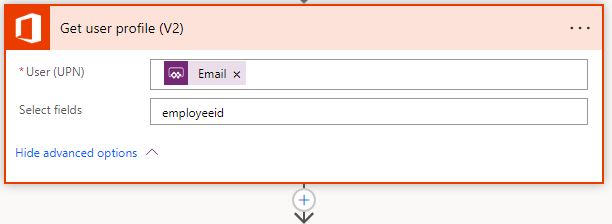
Next, we're going to add the function, Get user profile, click on the Advanced option and add the output from the previous function into the User (UPN) field and add "employeeid" into the Select fields field.

This is the step that goes off and finds the Employee ID.

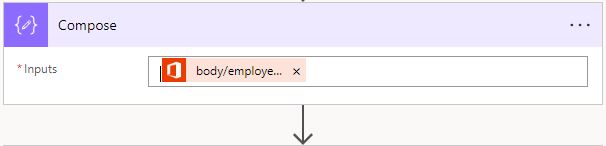
Now we add a Compose function and make the Input the Output from the previous Get user profile function.

I'm not exactly sure what this step is doing, but just go with it ...

For me, the Dynamic Content menu didn't offer me the Output from the Get user profile function, so I had to add it as an expression, like this:

outputs('Get_user_profile_(V2)')?['body/employeeid']

The next step is optional, but I found it handy during testing to make sure the Flow was triggering when I needed it to and that the Employee ID was being captured, like this:

You can always remove the Send an email function when you're happy the Flow is performing as expected.

We're going to hold the Employee ID in a variable, so we can deliver it back to the Power App form, so let's initialise one.

No need to populate Value, we'll assign one to the variable in the next step.

The last step is to deliver the result back to the Power App form, so that requires the Respond to a PowerApp flow function. Just add the variable name and set its value to the output from the Compose function. It does seem like overkill because I added the same value for the variable in the next step, as well ...

We're setting the value of the variable in this step and sending it back to the PowerApps form.

And that's it ... we're ready to return to the Form and make sure the PhotoFileName field is ready to receive the value for the Employee ID.

But don't forget to Save your Flow first.

AND ... BACK TO THE FORM

I'd already set up the PhotoFileName field to receive the value from the EmpID variable once the Flow had run. The next challenge was to come up with a way to trigger the Flow.

In most scenarios, we ask the user to make some sort of change to the form, and we can usually piggyback on that change to trigger other actions. But in this case, I just wanted the person booking the session with the photographer to check that the timeslot was correct and then click the Save button. The rest I wanted to happen automatically and invisibly.

My first thought was to use a Timer ... so I added one to the Form and set it up like this:

Timer.Duration = 500  --  in milliseconds
Timer.Start = false
Timer.Autostart = true
Timer.OnTimerEnd = Set(vEmpID, GetIDPB.Run(DataCardValue7.Text)

Adding a Timer button seemed like the right choice, but at first it wouldn't trigger the Flow.

But that didn't work. For some reason, the Timer button would not launch the command that starts the Flow running. I tried setting the Start function to "true" but that didn't help either.

After some minutes of deep thought I came up with a solution. Swap the actions of the Timer button and the Save button.

On the Timer button I set the Autostart value back to "false". Then I gave the Start function the value of (variable) "vStart". Finally, I set the OnTimerEnd value to what I'd originally put in the Save button:

SubmitForm(SharePointForm1);Navigate(FormScreen_Thanks,ScreenTransition.Fade)

And on the Save button, I changed the OnSelect value to:

Save.OnSelect = Set(vEmpID, GetIDPB.Run(DataCardValue7.Text));Set(vStart, true)

... note the addition of the command that sets the vStart variable to "true".

Now when I clicked on the Save button, the Flow was triggered, the Employee ID was retrieved, the Flow sent me an email containing my Employee ID and the Form updated the SharePoint List field PhotoFileName with my First Name, Surname and Employee ID.

Satisfied that all was working as expected, I could now hide the form's PhotoFileName and UserName fields, along with the Timer button.

After hiding the fields and functions the user doesn't need to see, this is what the final triggered EditForm looks like.

The one final test to make sure all was working before removing the Send an email action from the GetIDPB flow ...

After clicking Save, the SharePoint list will be updated to look like this.

And that's it. Maybe in the future Microsoft will make this process a bit simpler, but until then, this should suffice.

I hope this helps someone.


Saturday, 22 April 2023

Passing SharePoint List values from one list to another

I WAS LOOKING TO PASS LIST VALUES FROM ONE LIST TO ANOTHER in Power Apps, and it was quite a bit trickier than I imagined.

The company I work for has a private box at one of the big London concert venues that is used for entertaining corporate clients. My colleagues in the Events team manage the use of the box, but the process had become mired down in a maze of emails and Excel spreadsheets. I was asked if there was a better way to manage requests to use the box.


We already had a SharePoint classic calendar which was populated with the forthcoming events at the venue, but I wanted to create an application form that could manage the request process end-to-end.

The first barrier I ran into is that you can't customise the form-set for a classic calendar using Power Apps. And I wasn't able to see if using SharePoint Designer was an option, as my SPD stopped working a few months back (I've no idea why). So I had to come up with another way.

I didn't really want to get rid of the SharePoint calendar, because a lot of work had been invested in it and it is a pretty good way for our requestors to see a simple layout of forthcoming events ... so I wondered if I could create a second SharePoint list to manage the requests to use the box. It would all hinge on whether I could send some data from the calendar to the secondary Requests list. I was thinking ... query strings!

THE SOLUTION

The first step was to see whether I could send data to a Power Apps form in a query string. So I set up the Requests Management list and made sure I had a DateTime field to hold the Event's start time from the Calendar ("Start Time"). Both Lists would use the Title column to pass the name of the event.


So, to see whether it would work, I built a link, including the query string, using the simple canvas app I built to manage the Requests list, like this:

https://apps.powerapps.com/play/[PowerAppID]?tenantId=[tenantID]&Event=[Title]&Date=[Start Time]

I knew from previous Power Apps I'd built that the Date value would be passed in the format "2022-11-06T18:00:00Z", but there would be no need to try to reformat that at this stage.

Then, I needed to prepare the fields in the recipient form to receive the data from the query string. To do that I set the Event field in the Power Apps form to:

Event_DataCardValue1.Default = Param("Event")

... and the Date field to:

DataCardValue2.DefaultDate = Param("Date")

But when I pasted the constructed URL into the browser and hit Return, the result wasn't quite what I was looking for.


The Event value passed just fine, but the Date ... well, all I got was the date.

A quick search of Google suggested that a Power Apps Date field can't display the time value from a DateTime field. Quite why Microsoft thought that was a good idea, I couldn't say. But it left me in a bit of a bind. Because sometimes, concert venues have more than one show on a particular date and I needed to understand which show the Requestor was asking for.

One partial solution I found via Google was a suggestion that to fill in a time value in a Power Apps form, I could add an invisible dropdown, pre-populated with hour values, to the DateTime DataCard and then have the query string value select the appropriate hour value from the drop down to display. Sounded a bit convoluted, but I thought I might be able to adapt it to my needs.

So, I added the dropdown, then put this in its Items field:

["09","10","11","12","13","14","15","16","17","18","19","20"]

I figured I'd just put the hours that I knew would be likely to turn up in the query string - no show would start before 09.00 hours or after 20.00 hours.

Then I made the Hours dropdown's Default value:


ddHours.Default = Text(DateTimeValue(Param("Date")), "hh")

... and tried again. Success!


That was easier than I thought ... but then came the Minutes field. Using a similar approach, I added a dropdown for the Minutes value into the DateTime DataCard, and set it up like this:


Putting this in the Minutes dropdown's Items field:

["00","11","15","30","45"]

... and setting the Mins dropdown's Default value to:

ddMins.Default = Text(DateTimeValue(Param("Date")), "mm")

But it didn't work.


A bit more frantic Googling and I came across this variation for the Default field:

ddMins.Default = Minute(Param("Date"))

Ah-ha! Success! This one worked. All I had to do next was figure out the Update value for the parent DataCard and we'd be in business ...


So, in the same Google search I found a formula for updating the DateTime column in the Requests Management list. It looked like this:

EventDate_DataCardValue1.Update = DataCardValue2.SelectedDate + Time(Value(ddHours.Selected.Value), Value(ddMins.Selected.Value),0)

I'm not entirely sure what's going on here, but the first bit fetches the Date value that's been passed to the form by the query string. The second bit adds the Hours value from the invisible hours dropdown and the third bit adds the Mins value from the invisible mins dropdown. The bit I'm not sure about is the zero at the end (could it be the value for seconds?) ... but never mind, it works!

AND ... BACK TO THE CALENDAR

So, the other part of this problem was to create a link in the original source calendar that would send our intrepid requestor to the Power Apps Request form.

I've used Power Platform to create a dynamic link before and documented it here. So my first thought was to see if this could be adapted to generate a dynamic link that would be formatted the same way as my manually-created test link above. Just to remind you, the link needed to look like this:

https://apps.powerapps.com/play/[PowerAppID]?tenantId=[tenantId]&Event=[Title]&Date=[Start Time]

But first create a new field in the source calendar, Register, and make it a "Hyperlink or picture field".

Next, as in the earlier post, I thought I could create a Flow in Power Automate that would generate a dynamic link when a new Calendar entry was added.

I used a "When an item is created or modified" flow, because I figured that it would be useful if the time of an event changed, the administrator could make the change, then delete the existing link, and a new link would be generated.

So, to build the dynamic link in the Flow, we're going to use the Send an HTTP Request to SharePoint action:


The settings in this Action should be:

Set Method to:

POST

Set Uri to:

_api/web/lists/GetByTitle('Calendar')/items([ID])

... where the [ID] is replaced with a dynamic ID look up.

Set Header to:

{

   "Content-Type": "application/json;odata=verbose",

   "X-HTTP-Method": "MERGE",

   "IF-MATCH": "*"

 }

And finally, I set Body to:

{'__metadata': {'type':'SP.Data.HRBookSlotListItem'},'Register':

 {'Description': 'Book this slot',

 'Url': 'https://apps.powerapps.com/play/[PowerApps ID]?tenantId=[tenantId]&Event=[Title]&Date=[Start Time]'}

}

BUT ... this only nearly worked. What I found on testing was that the dynamic link generated wasn't quite right. Any wordspaces from the Title field were being replaced with a "+" sign. Random! Why not "%20", which is the usual replacement for a word space in a URL? Who knows?

So I figured what I would do is write the Title value to a variable then replace the + symbol with the more functional encoded wordspace ("%20"). Here's how I did it.

First, Initialise a variable to hold the Title value.


Then, initialise a second variable to process and hold the transformed Title value.


Here's the formula that we use to scan the Title value and replace the open word space with the encoded "%20":

[

  {

    "Old": " ",

    "New": "%20"

  }

]

Next, I added a condition to make sure that the new Register field in the calendar was empty:


In the Yes branch of the Condition, we need to add an Apply To Each container, so we can cycle through the Title values and replace the wordspace with "%20", like this:


We place the vReplace variable in the Select an output from a previous step.

Then we add a Compose action and insert this expression:

Inputs.fx = replace(variables('vTitle'), item()?['Old'], item()?['New'])

Finally, add a Set variable action and select vTitle in the Name field and add Outputs from the Compose action in the Value field.

Next comes the Send an HTTP request to SharePoint that we already configured earlier, but now we've replaced the dynamic Title value with the vTitle variable.


Now when you add a new event to the event calendar, the appropriate dynamic link is generated and added to the Register field in the Calendar, like this:


That's pretty much it. The Event Name and the Event DateTime get passed from the original calendar item, via the Power Apps form, to the Requests Management list. Once a new instance is created in the Requests Management list, a different Flow takes care of routing the request to the Department Head for approval, and finally informing the Requestor of the status of their request.

I hope that helps someone.

Next: More query string shenannigans